Table of Contents

Ask Gemini in Chrome: From browser to intelligent AI agent

Facebook
X
LinkedIn
Ask Gemini ใน Chrome

Modern web browsers have always been gateways to information, but Ask Gemini in Chrome is transforming it into something even more powerful: an action-oriented intelligent assistant. Instead of simply searching and reading information, users can now interact with the browser like a capable AI agent, understanding context, performing tasks, and providing real-time assistance.

This evolution marks a transition from passive browsing to proactive action. Whether you're researching, shopping, or managing tasks, Gemini transforms Chrome into a collaborative workspace that truly engages your workflow. 

What is Ask Gemini in Chrome?

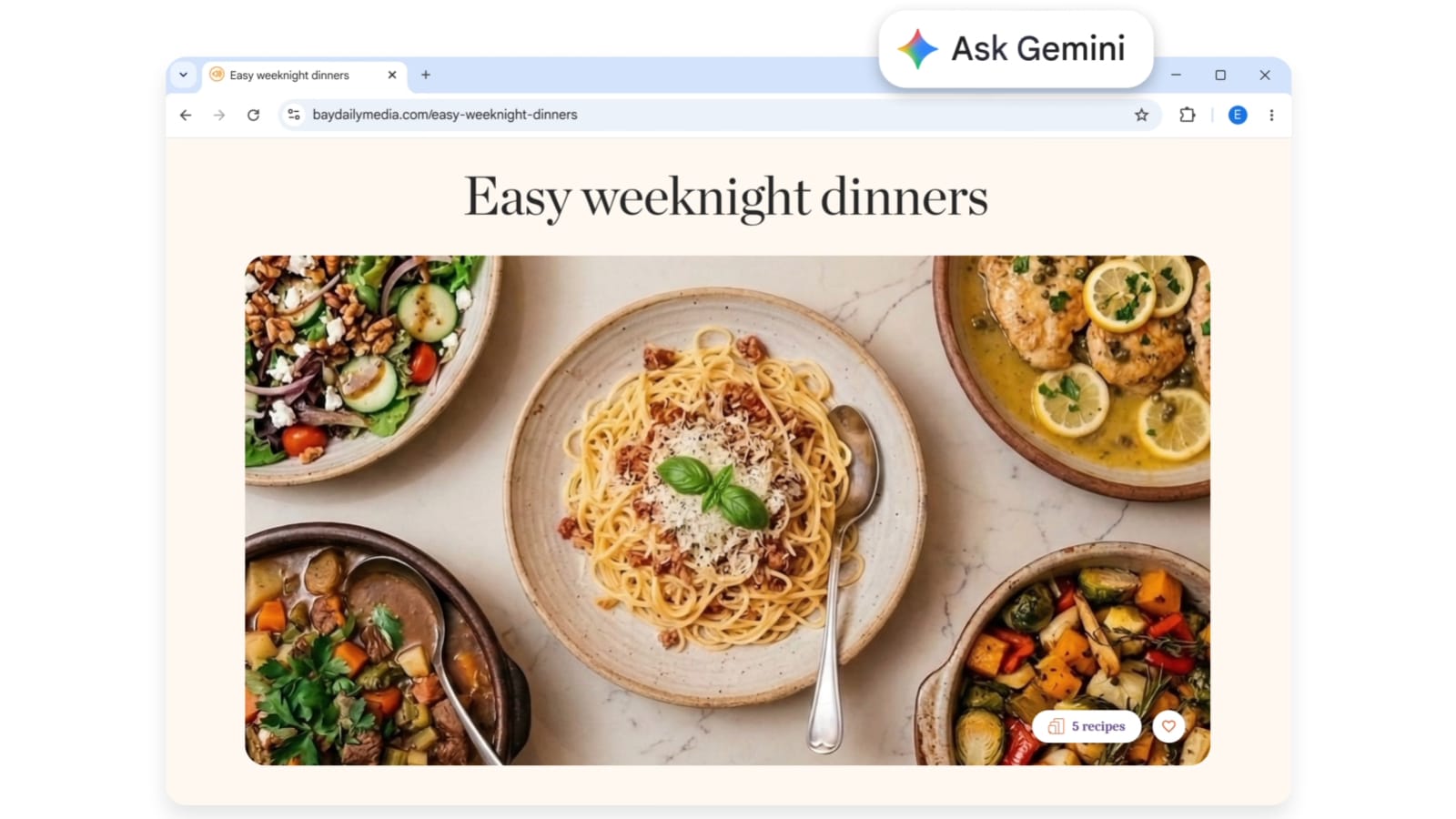
Essentially, Ask Gemini in Chrome is an AI assistant deeply embedded directly into the Chrome browser. Unlike typical AI tools, it's "browser-aware," meaning it understands what you're viewing and can take immediate action on it.

Main access point:

  • Icons on the toolbar: Gemini can be launched directly from the Chrome toolbar.
  • Floating or fixed control panels: Can be used as a side panel or pop-out window.
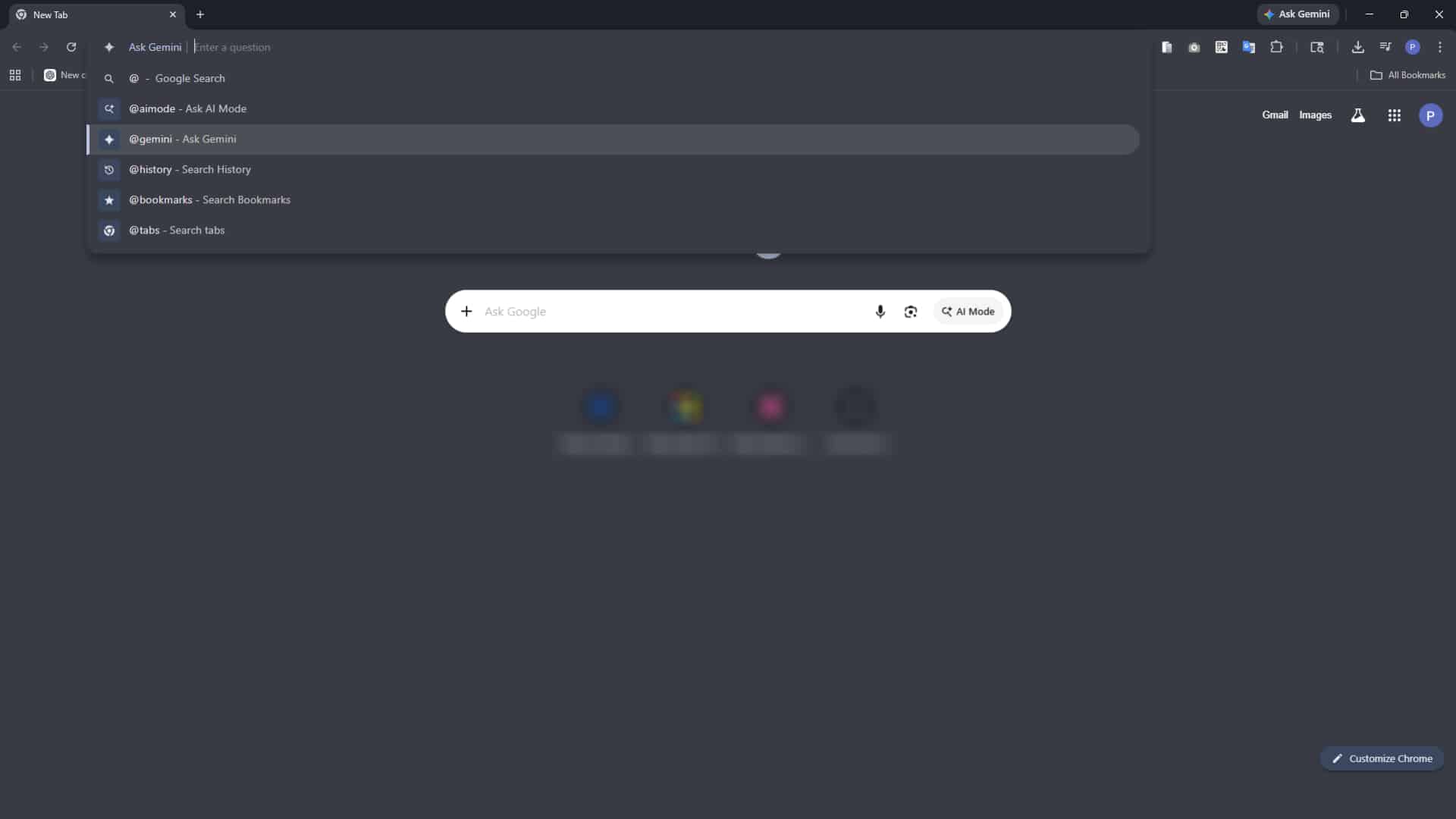
  • Shortcut in the web address bar (Omnibox): Type @gemini in the web address bar to access the quick command.

This seamless integration ensures that users don't need to switch between tabs or apps, because Gemini is always just a click away.

Ask Gemini in Chrome: Learn how to understand browser context with intelligence

The most outstanding feature of this tool is its ability to understand and interact with your browsing environment.

1. Tab Awareness

Gemini can read and interpret the content in the tab you are currently using, which helps to:

  • The article can be summarized immediately.
  • Summarize complex stories to make them easy to understand.
  • Highlight the key and interesting points.

2. Multi-Tab Reasoning

Users can share multiple tabs simultaneously (up to 10 tabs) with Gemini:

  • Compare products from different websites.
  • Check for cross-references between research documents.
  • Gain insights by gathering information from diverse sources.

Example of usage: If you're looking for a new car, open five review websites and ask Gemini, "Create a table comparing fuel efficiency, safety levels, and prices of cars in these tabs." It will immediately analyze the data from all five websites for you.

3. “Auto Browse”: AI agents in practice

The “Auto Browse” feature transforms Gemini from a speaker into an action-oriented user, enabling it to perform multiple tasks on the web.

  • Things you can do: Search and book flights, reserve restaurant tables, or even find discount deals and add items to your cart according to your needs.
  • Human-in-the-loop control: Don't worry about accidental purchases, because Gemini is designed with "checkpoints" for sensitive actions such as final payment or signing a contract. The system will pause and ask you to "take over" or "confirm" the transaction.

4. The magic of visuals with Nano Banana 2

This integration includes Nano Banana 2 , Google's latest image creation and editing model.

If you see an image on a blog that you like but want a different style, you can right-click or select "Edit this image" in the sidebar using Gemini to change the background, lighting, or objects without leaving the page.

5. Real-time voice interaction (“Go Live”)

If you're on the go or prefer talking, Gemini Live mode lets you have seamless voice conversations. You can open a complex technical document and ask, "Hey Gemini, can you explain that third paragraph to me in a way a five-year-old can understand?" and it will respond verbally while you continue scrolling through the webpage. This creates a smooth and natural browsing experience, just like a real conversation.

From Assistant to Agent: The Capabilities of Auto Browse

The biggest leap forward was the introduction of Agent Behavior where Gemini doesn't just "help," but "takes action."

What Auto Browse can do

  • Book travel tickets
  • Reserve a table at a restaurant
  • Add the product to your cart
  • Follow a multi-step workflow

Safety through human control (Human-in-the-Loop)

For critical operations, Gemini will always pause and request your confirmation first:

  • Payment
  • Account login
  • Legal agreement

This ensures that users retain full control while benefiting from automation.

Technical data and specifications

Features

Details

AI model

Gemini 1.5 Pro, Gemini 3 Flash

Platform

Windows, macOS, Chromebook Plus

Browser requirements

The latest version of Chrome

account

A Google account is required

These details underscore that advanced features, particularly Auto Browse are part of a premium AI ecosystem.

Privacy and security: You are in control.

Google has anticipated potential privacy concerns arising from AI “watching” your screen:

  • Warning symbol: When Gemini is “reading” a tab, that tab will be displayed Glowing underline And a unique icon.
  • Consent is required beforehand: Gemini cannot see your tabs unless you explicitly open the control panel or click the “Add Tabs” button.
  • Protection in incognito mode: This feature will be disabled in Incognito mode to ensure your private browsing remains truly private.

How to get started

To access this feature, look for Gemini icon In your Chrome toolbar (usually next to the side panel buttons).

Pro tips: You can submit a quick question by typing @gemini In the web address bar (Omnibox), follow with your question.
Get Started

Real-world use cases

  1. Expedite the information gathering process: Instead of having to read multiple articles yourself, Gemini can summarize the content, highlight key differences, and provide immediate insights.
  2. Smarter online payments: Compare multiple product pages to get feature comparisons, price analysis, and recommendations.
  3. Automation: From making appointments to filling out forms, Gemini helps reduce repetitive tasks.
  4. Improve work efficiency: Allowing AI to handle daily routine tasks lets users focus on making decisions rather than performing the minute steps.

Transformation: From discovery to action

Traditional browsers allow you to “search for information”.
But Ask Gemini in Chrome lets you “take action” with that data.

This change is considered fundamental:

  • Search → Understanding
  • Understanding → Decision making
  • Decision making → Taking action

Gemini links all three of these steps into a single interface.

Activation and limitations

“Ask Gemini in Chrome” is now available globally, with the latest expansion to India, Canada, and New Zealand. While the basic summary feature is free, Auto Browse This will be part of the Google AI Premium plan:

  • AI Pro: You can complete up to 20 multi-stage agent missions per day.
  • AI Ultra: You can complete up to 200 multi-stage agent missions per day.

Final conclusion

Ask Gemini in Chrome It's a significant step in interacting with the web world. By integrating contextual awareness, multi-tab reasoning, and agent-like actions, it has transformed Chrome into more than just a browser—a truly capable smart assistant.

As AI continues to evolve, this integration signals a future where browsers will no longer be passive tools, but active partners in the digital lives of all of us.


Interested in Microsoft products and services? Send us a message here.

Explore our digital tools

If you are interested in implementing a knowledge management system in your organization, contact SeedKM  for more information on enterprise knowledge management systems, or explore other products such as Jarviz  for online timekeeping, OPTIMISTIC  for workforce management. HRM-Payroll, Veracity  for digital document signing, and CloudAccount  for online accounting.

Read more articles about knowledge management systems and other management tools at Fusionsol Blog, IP Phone Blog, Chat Framework Blog, and OpenAI Blog.

New Gemini Tools For Educators: Empowering Teaching with AI 

If you want to keep up with the latest trending technology and AI news every day, check out this website . . There are new updates every day to keep up with!

Fusionsol Blog in Vietnamese

Related Articles

Frequently Asked Questions (FAQ)

Microsoft Copilot is an AI-powered assistant feature that helps you work within Microsoft 365 apps like Word, Excel, PowerPoint, Outlook, and Teams by summarizing, writing, analyzing, and organizing information.

Copilot currently supports Microsoft Word, Excel, PowerPoint, Outlook, Teams, OneNote, and others in the Microsoft 365 family.

An internet connection is required as Copilot works with cloud-based AI models to provide accurate and up-to-date results.

Users can type commands like “summarize report in one paragraph” or “write formal email response to client” and Copilot will generate the message accordingly.

Yes, Copilot is designed with security and privacy in mind. User data is never used to train AI models, and access rights are strictly controlled.

Facebook
X
LinkedIn

Popular Blog posts