Microsoft 365 shortcuts that can really save you time
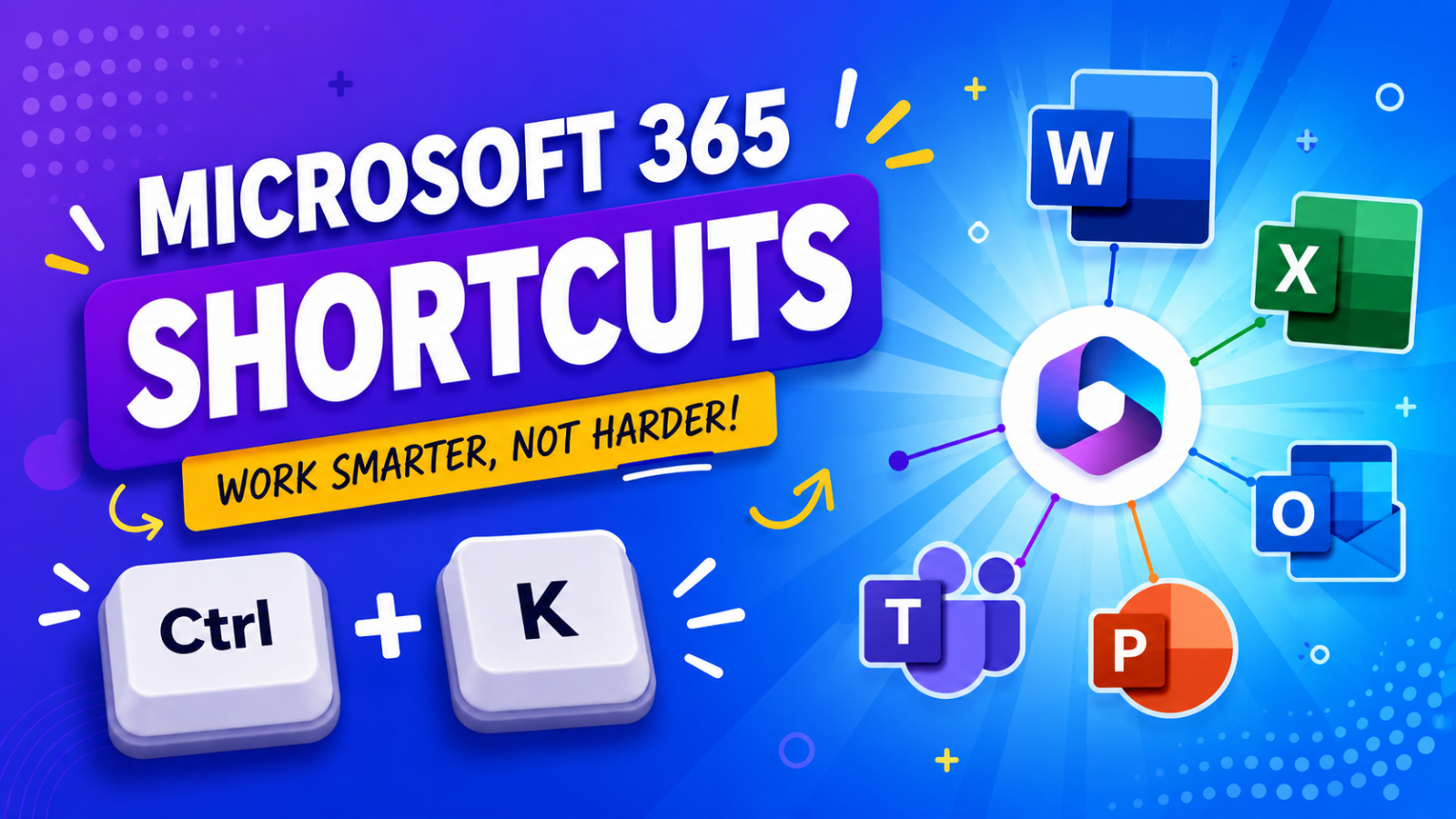
If you spend most of your day with apps in Microsoft 365, even small delays can quickly accumulate into a significant amount of lost time. Switching menus, searching for commands, formatting documents, or managing emails are all things that unknowingly waste time each week. That's why learning just a few essential Microsoft 365 shortcuts can greatly improve your workflow.
The best part is that you don't need to memorize hundreds of commands; just a practical set of keyboard shortcuts can reduce repetitive clicks and help you work faster in Word, Excel, Outlook, PowerPoint, and Teams.
According to Microsoft Support, keyboard shortcuts improve both accessibility and efficiency by allowing users to operate applications without relying heavily on the mouse. Meanwhile, How-To Geek has also published a cheat sheet for the most frequently used Office keyboard shortcuts.
Why are keyboard shortcuts important?
Keyboard shortcuts aren't just for power users; they allow everyone to:
- Reduce repetitive mouse movements
- The application runs faster
- Focus more on your work
- Multitasking has improved
- Increase the speed of document editing and data entry
Even though it may only save 2–3 seconds per task, when this happens hundreds of times a day, it makes a huge difference.
In many productivity communities, keyboard shortcuts are mentioned as one of the fastest ways to boost productivity on Microsoft Apps.
Basic Microsoft 365 shortcuts that everyone should know
These keyboard shortcuts can be used in most Microsoft 365 apps and are a key element in achieving a faster workflow.
Action | Windows Shortcuts |
Copy | Ctrl + C |
Paste | Ctrl + V |
Cut | Ctrl + X |
Undo | Ctrl + Z |
Redo | Ctrl + Y |
Save | Ctrl + S |
Open | Ctrl + O |
New File | Ctrl + N |
Ctrl + P | |
Search | Ctrl + F |
Replace | Ctrl + H |
Select All | Ctrl + A |
Bold | Ctrl + B |
Italic | Ctrl + I |
Underline | Ctrl + U |
These are the shortcuts most professionals use dozens of times every day.
Microsoft Word Shortcuts That Save Real Time
Microsoft Word users often spend time formatting documents, navigating pages, and editing text. These shortcuts reduce that friction significantly.
Navigation and Editing
Action | Shortcut |
Move to beginning of document | Ctrl + Home |
Move to end of document | Ctrl + End |
Select one word at a time | Ctrl + Shift + Arrow |
Delete one word at a time | Ctrl + Backspace |
Open navigation pane | Ctrl + F |
Insert hyperlink | Ctrl + K |
Formatting Shortcuts
Action | Shortcut |
Apply Heading 1 / 2 / 3 styles | Ctrl+Alt+1 / 2 / 3 |
Increase font size | Ctrl + Shift + > |
Decrease font size | Ctrl + Shift + < |
Center text | Ctrl + E |
Align left | Ctrl + L |
Align right | Ctrl + R |
Justify text | Ctrl + J |
Excel Shortcuts Every Office Worker Should Learn
Microsoft Excel is an app where keyboard shortcuts are extremely useful, because spreadsheet users often have to perform the same tasks hundreds of times.
For Excel Power Users
Action | Shortcut |
Edit selected cell | F2 |
Fill Down | Ctrl + D |
Fill Right | Ctrl + R |
Insert current date | Ctrl + ; |
Insert current time | Ctrl + Shift + ; |
AutoSum | Alt + = |
Create Table | Ctrl + T |
Filter data | Ctrl + Shift + L |
Open format cells | Ctrl + 1 |
Jump to edge of data | Ctrl + Arrow Key |
One particularly useful shortcut is:
Action | Shortcut |
Select cells and fill all selected cells at once | Ctrl + Enter |
This shortcut alone can save enormous amounts of time during repetitive spreadsheet work.
Outlook Shortcuts for Faster Email Management
Microsoft Outlook can easily become overwhelming when inboxes grow large. Keyboard shortcuts help process messages faster and reduce context switching.
Action | Shortcut |
Create new email | Ctrl + Shift + M |
Reply to email | Ctrl + R |
Reply all | Ctrl + Shift + R |
Forward email | Ctrl + F |
Send email | Ctrl + Enter (or) Alt + S |
Search Outlook | Ctrl + E |
Switch to calendar | Ctrl + 2 |
Switch to mail | Ctrl + 1 |
The search shortcut alone can save minutes every day for people handling large email volumes.
PowerPoint Shortcuts for Faster Presentations
Microsoft PowerPoint users can speed up slide creation and presentation delivery with a few important commands.
Action | Shortcut |
New slide | Ctrl + M |
Duplicate object | Ctrl + D |
Start slideshow | F5 |
Start slideshow from current slide | Shift + F5 |
Black screen during presentation | B |
White screen during presentation | W |
These shortcuts are especially useful during live presentations when quick control matters.
Teams Shortcuts for more efficient collaboration
Microsoft Teams has become central to hybrid work environments, and shortcuts can make communication much smoother.
Action | Shortcut |
Search | Ctrl + E |
Start new chat | Ctrl + N |
Open settings | Ctrl + , |
Show shortcuts list | Ctrl + . |
Mute/ Unmute | Ctrl + Shift + M |
Frequent Teams users can save substantial time by reducing menu navigation during meetings and chats.
Learn the Ribbon Key Tips
One of the most overlooked productivity features in Microsoft 365 is Ribbon Key Tips.
Shortcuts | Action |
Alt | Reveal ribbon shortcuts |
After pressing Alt, Microsoft displays letters across the ribbon interface. Typing those letters activates commands directly from the keyboard without touching the mouse. Microsoft officially documents this feature as part of its accessibility and productivity tools.
For example:
- Alt + H opens the Home tab
- Alt + N opens Insert
- Alt + P opens Page Layout
This is one of the fastest ways to discover new shortcuts naturally while working.
The Best Way to Memorize Shortcuts
Trying to memorize dozens of shortcuts at once usually fails. Instead:
- Pick 5 shortcuts you use daily
- Force yourself to use them for one week
- Add another 3–5 shortcuts gradually
- Print a cheat sheet near your desk
Research and user discussions consistently show that repetition builds muscle memory over time.
Summary
The biggest productivity improvements often come from small habits repeated every day. Learning practical Microsoft 365 shortcuts is one of the easiest ways to work faster without changing your software, hardware, or workflow.
You do not need to become a keyboard shortcut expert overnight. Even mastering a handful of shortcuts in Word, Excel, Outlook, and Teams can noticeably reduce repetitive work and help you stay focused throughout the day.
Interested in Microsoft products and services? Send us a message here.
Explore our digital tools
If you are interested in implementing a knowledge management system in your organization, contact SeedKM for more information on enterprise knowledge management systems, or explore other products such as Jarviz for online timekeeping, OPTIMISTIC for workforce management. HRM-Payroll, Veracity for digital document signing, and CloudAccount for online accounting.
Read more articles about knowledge management systems and other management tools at Fusionsol Blog, IP Phone Blog, Chat Framework Blog, and OpenAI Blog.
New Gemini Tools For Educators: Empowering Teaching with AI
If you want to stay up-to-date with the latest technology and AI news, check out this website It's updated daily!
Fusionsol Blog in Vietnamese
- What is Microsoft 365?
- What is Copilot?What is Copilot?
- Sell Goods AI
- What is Power BI?
- What is Chatbot?
- What is cloud storage?
Related Articles
Frequently Asked Questions (FAQ)
What is Microsoft Copilot?
Microsoft Copilot is an AI-powered assistant feature that helps you work within Microsoft 365 apps like Word, Excel, PowerPoint, Outlook, and Teams by summarizing, writing, analyzing, and organizing information.
Which apps does Copilot work with?
Copilot currently supports Microsoft Word, Excel, PowerPoint, Outlook, Teams, OneNote, and others in the Microsoft 365 family.
Do I need an internet connection to use Copilot?
An internet connection is required as Copilot works with cloud-based AI models to provide accurate and up-to-date results.
How can I use Copilot to help me write documents or emails?
Users can type commands like “summarize report in one paragraph” or “write formal email response to client” and Copilot will generate the message accordingly.
Is Copilot safe for personal data?
Yes, Copilot is designed with security and privacy in mind. User data is never used to train AI models, and access rights are strictly controlled.