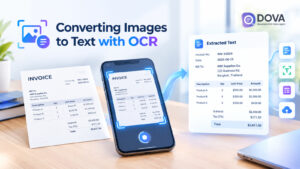
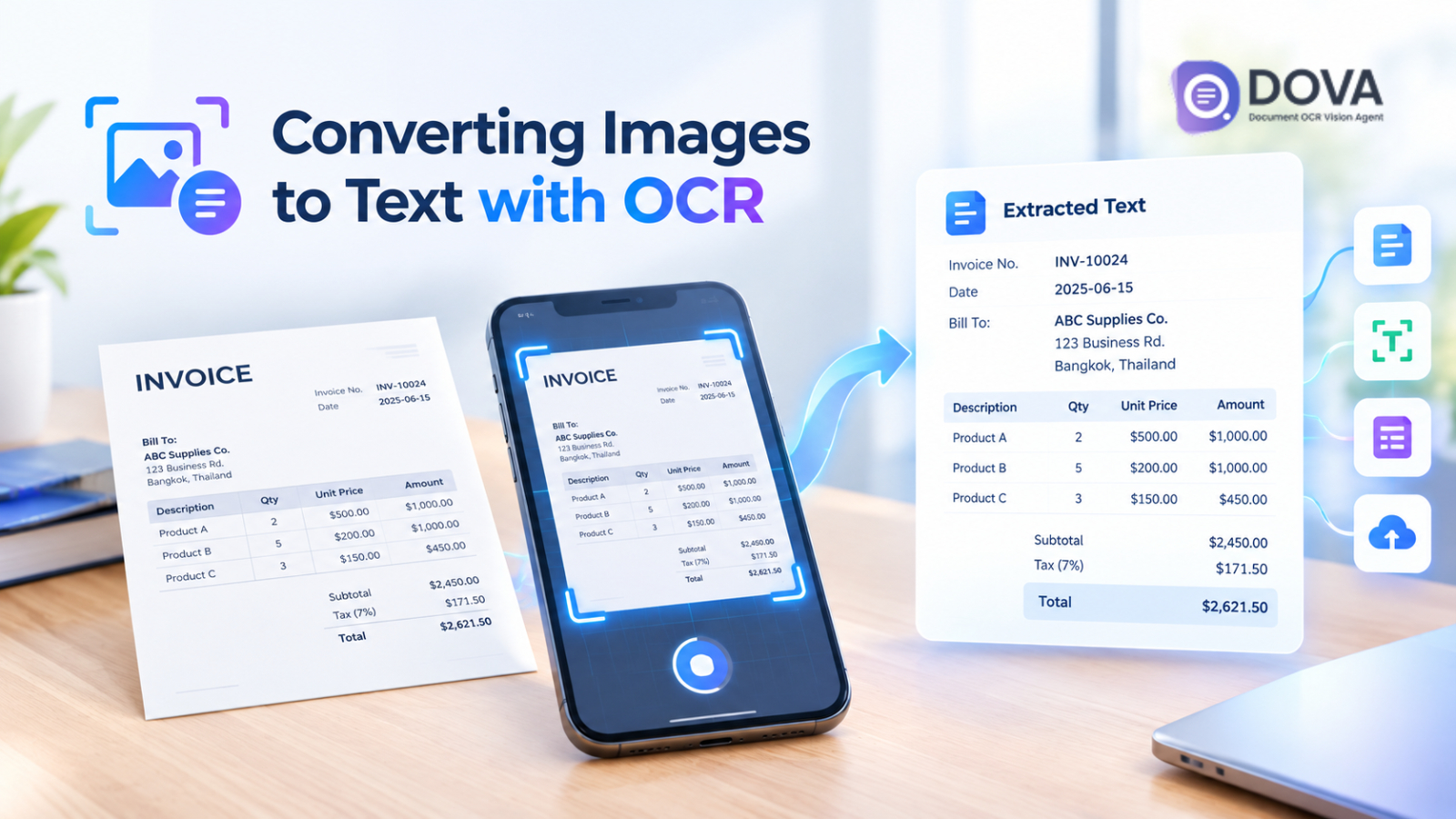
Images often contain important information, ranging from screenshots and photographs to invoices, receipts, and scanned business documents. However, manually copying text from images can be time-consuming, especially when employees have to handle large volumes of files on a daily basis.
OCR (Optical Character Recognition) technology enables the conversion of images into text by recognizing characters within an image and transforming them into a format that computers can read and process. This allows users to search, copy, edit, or utilize the data without having to manually type everything out.
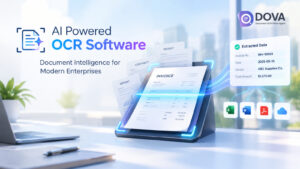
For businesses, OCR offers benefits that go beyond mere convenience. When integrated with data extraction and workflow automation, it reduces repetitive administrative tasks and enhances document processing efficiency. DOVA OCR provides document processing capabilities that enable organizations to convert document-based information into ready-to-use digital data.
How does OCR convert images into text?
OCR works by analyzing images, locating text, and recognizing the characters within them. Generally, this process consists of four steps.
- Upload an image or scanned document
Start by importing images, photographs, screenshots, or scanned PDF files. The quality of the source file is important, as blurred text, obscuring shadows, or low resolution can affect text recognition accuracy.
- Improve image quality
OCR software may enhance image quality prior to text recognition—such as by aligning the page, correcting skew, adjusting sharpness, and reducing image noise—thereby making it easier for the system to identify characters.
- Memorize letters and words
The software analyzes areas containing text and identifies the characters and words present. Depending on the chosen solution, the system may support the recognition of Thai, English, numerals, and other specified languages.
- Extract text and use it
Once the system recognizes the text, users can copy, search for, export, or use it in other applications. More advanced document processing solutions can also extract specific data—such as invoice numbers, dates, and total amounts—and organize the information into a structured format.
What can OCR be used for?
OCR supports a wide range of applications, spanning both daily life and business operations.
- Extract text from images and screenshots.
OCR can read text from screenshots, photos, posters, and other types of images. It is ideal for situations where text cannot be selected or copied directly—such as information contained in images received via email or messaging apps.
- Convert scanned PDFs into searchable documents.
Scanned PDF files typically consist of images of each page rather than selectable text. OCR recognizes the text, making the document's content searchable, so users can find the information they need without having to read through every page.
This capability is particularly useful for organizations that store large volumes of documents, such as contracts, reports, and historical records.
- Process invoices and receipts.
Accounting and finance teams can use OCR to recognize data such as vendor names, invoice numbers, document dates, and total amounts.
When combined with structured data extraction, this information can be prepared for accounting systems, helping to reduce repetitive data entry and facilitate faster document processing. However, key financial figures should be verified before actual use.
- Convert business forms and documents into digital data.
Businesses frequently handle paper-based documents such as application forms, purchase orders, and contracts. OCR technology converts the content of these documents into digital data, enabling more efficient storage, retrieval, and processing.
For example, an organization can extract data from completed forms instead of manually entering information into a spreadsheet or database field by field.
- Supports Thai and English document processing.
Many organizations need to handle documents containing both Thai and English text. OCR solutions that support multilingual recognition enable the extraction of data from these documents, eliminating the need for staff to manually type out all the text.
However, recognition accuracy depends on the software, image clarity, document layout, and supported languages; therefore, businesses should test the solution with actual documents before making a decision.
How does OCR differ from manual data entry?
Manual data entry requires staff to read text from documents and type the information into another system, whereas OCR automates the text recognition process, reducing repetitive tasks and enabling staff to process documents more efficiently and in greater volume.
However, OCR does not always yield perfect results; low-quality images, complex document layouts, and visually similar characters can lead to reading errors. Therefore, verifying critical information is essential for business documents.
The difference becomes even more apparent when OCR is combined with data extraction and automation; rather than simply recognizing text, document processing workflows can identify specific fields, validate data, and transmit the results to other systems.
How does DOVA OCR enhance document processing workflows?
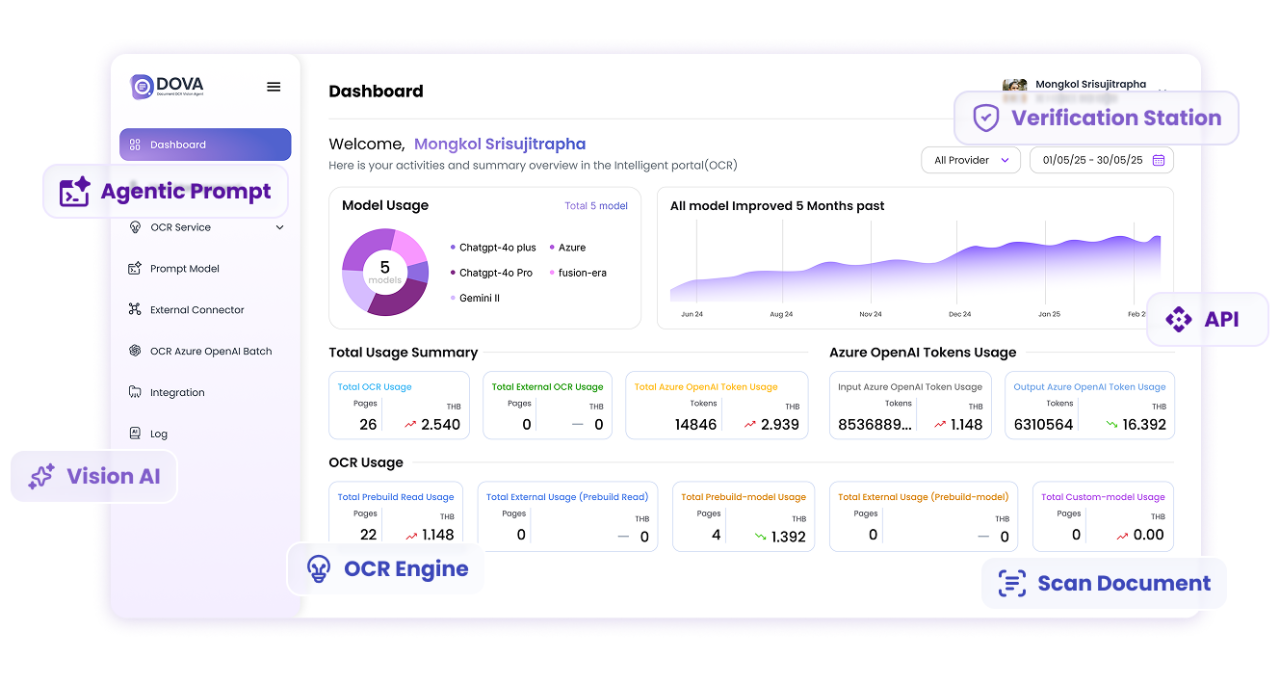
DOVA OCR enables businesses to overcome the limitations of standard text recognition by integrating OCR with capabilities for document data extraction, classification, verification, and connectivity with other systems.
- Reduce repetitive manual data entry.
Employees can use OCR to read text from documents and extract relevant data from invoices, receipts, and forms. This eliminates the need to manually enter data into every field, allowing staff more time to verify results and handle cases requiring special attention.
- Organize documents more efficiently.
Document classification helps categorize incoming documents, enabling appropriate processing based on document type and supporting more systematic workflow management for invoices, application forms, and other types of business documents.
- Verify the data before processing.
DOVA OCR features data verification capabilities, enabling staff to review extracted information and identify potential errors before the data is passed to the next stage of the process. This functionality is particularly valuable for financial figures, reference numbers, and other critical data.
- Reduce manual data transfer between systems.
DOVA OCR supports various capabilities, such as CSV file export, database storage, and RESTful APIs. Depending on the deployment model, these features facilitate the transfer of extracted data into existing business systems and reduce the need for manual data copying between applications.
- Support more standardized work processes.
Integrating text recognition, data extraction, verification, and system connectivity enables businesses to establish consistent workflows—spanning everything from document receipt to the transformation of data into ready-to-use digital information.
The actual benefits realized depend on the quality of the documents, workflow design, system integration requirements, and the level of human verification required.
How can you get better OCR results?
The quality of the original image plays a crucial role in OCR accuracy. Images should be clear, have sufficient resolution, be properly lit, and be correctly aligned. Avoid blurry photos, shadows that obscure text, and images where the text is cut off.
For business applications, you should test the software using actual documents—including examples that are difficult to process—evaluate the accuracy of key data fields, check error-handling procedures, and confirm that the extracted data can be seamlessly transferred to the systems currently used by the organization.
In addition, security requirements, supported languages, the volume of documents to be processed, and implementation costs should be considered before adopting an OCR solution for the organization.
Summary
OCR makes it easier to access, search, and repurpose information contained in images and scanned documents. From extracting text from screenshots to processing invoices and business documents, this technology helps reduce manual tasks and improves document management efficiency.
For organizations managing large volumes of documents, converting images to text is merely the starting point. Integrating OCR with structured data extraction, validation, and system connectivity transforms recognized text into data that supports actual business workflows.
DOVA OCR features document processing capabilities designed to help businesses extract, organize, verify, and forward data more efficiently.