Video content has become one of the most powerful ways to communicate ideas, train employees, and engage customers. However, traditional video production often requires time, specialized skills, and expensive equipment.
Microsoft Copilot is changing this completely.
With AI-powered video creation, you can now transform simple ideas or ordinary documents into professional-looking videos complete with scripts, illustrations, voiceovers, music, and transitions in minutes.
This guide explains how to create videos with Copilot step-by-step, including usage guidelines for business, marketing, and training.
What is video creation in Copilot?
Microsoft Copilot has a “Create Video” feature that allows users to create videos via natural language prompts or use existing files such as PowerPoint presentations or documents.
Copilot uses AI to:
- Create an automated script.
- Select stock footage and related images.
- Add narration and background music.
- Combine everything into a complete draft video.
That means you don't need video editing experience to create high-quality content.
Creating videos with Copilot (Step-by-Step)
- Open Copilot “Create” Experience
- Go to the Microsoft 365 Copilot app
- Select Create → Create a video
This is the beginning of creating videos with AI.
- Explain your video idea (Prompting)
Type a clear video description, such as:
- Topic (e.g., Product, Training, Campaign)
- Target group (customers, employees, executives)
- Video tone (Professional, Friendly, Inspiring)
The more detailed the prompt, the better the results will be.
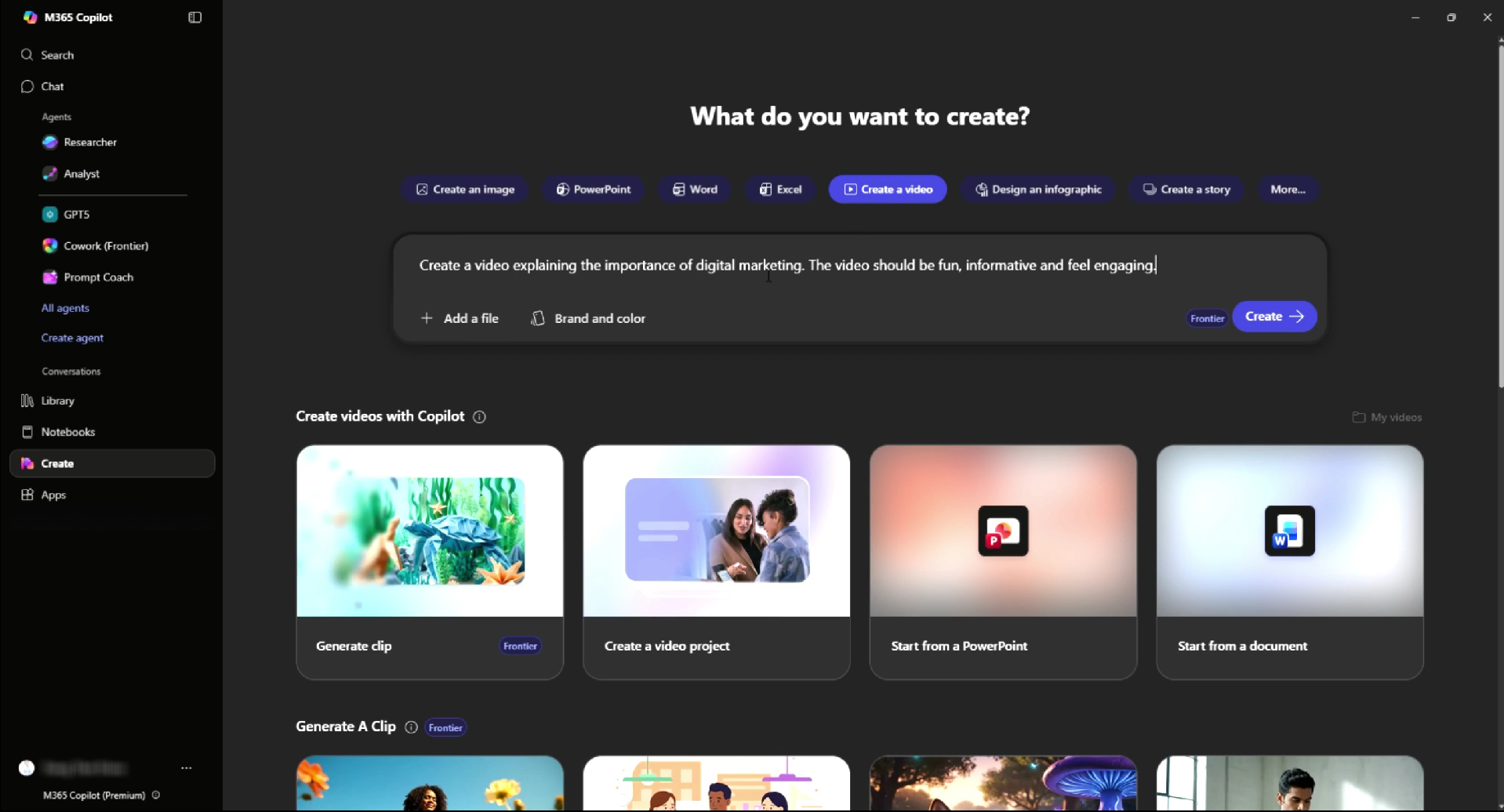
- (Optional) Add a file or PowerPoint presentation
You can upload:
- PowerPoint Presentations
- Documents (Word, PDF)
Copilot can automatically convert these files into videos with narration.
This is particularly critical for:
- Training documents
- Sales Presentation
- Internal Communication
- Create a video
Click Create and Copilot will:
- Create a script
- Select accompanying images and videos
- Add voiceover and music
- Create a video that is ready for preview
In many cases, the entire process takes less than a minute
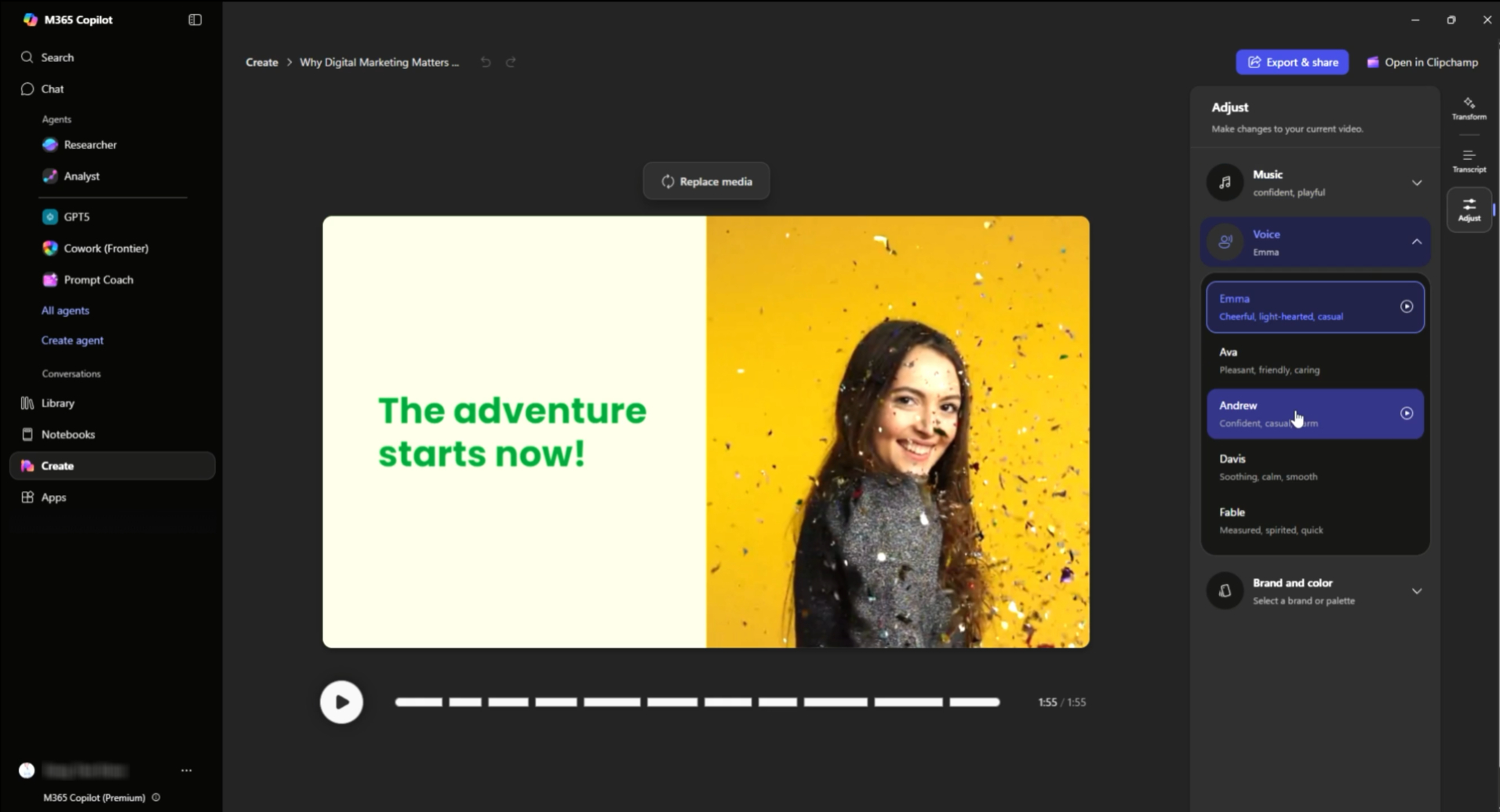
- Inspect and fine-tune with AI
After creating a video, you can:
- Change the style or tone of voice
- Change background music
- Adjust image or text
Copilot helps you easily generate new versions.
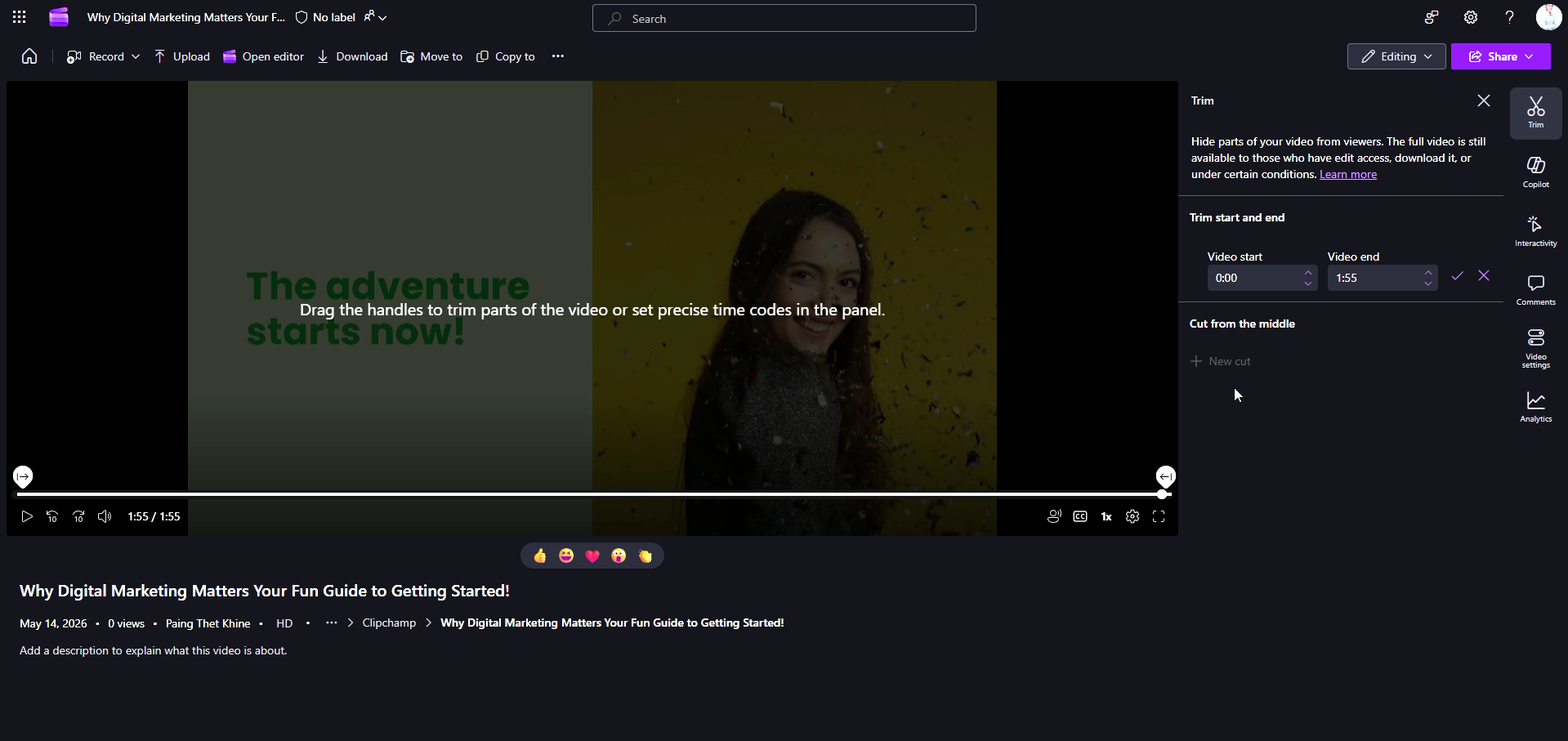
- Further edits in Clipchamp (Optional)
For advanced editing, you can open the video in Clipchamp, which can:
- Change the clip or image
- Increase the length of the Scene
- Customize Branding
Copilot connects directly to Clipchamp for deeper video control.
- Export and Share
Once the video is complete:
- Export as a video file (e.g., MP4)
- Share within or outside the organization.
Videos are typically saved in your environment, such as OneDrive, for easy access.
What types of videos can I create?
Copilot is highly suitable for business applications such as:
Marketing Videos
- Product introduction video
- Campaign promotional video
- Social Media Content
Training & Learning
- Employee Onboarding
- AI & Digital Skills Training
- Compliance Education
Internal Communication
- Company Updates
- Leadership Messages
- Project Summaries
Business Presentations
- Convert a PowerPoint presentation into a video with audio narration.
- Create an Executive Summary
- Presenting insights in a visual format.
Why use Copilot to create videos?
Speed & Efficiency
Create videos in minutes instead of spending hours.
No Editing Skills Required
The AI automatically handles the script, visuals, and voiceover.
Scalable Content Creation
It's possible to quickly create a large number of videos for multiple target groups.
Integrated Workflow
Works seamlessly with Microsoft 365 tools such as PowerPoint, Word, and Clipchamp.
Tips for creating better videos
To obtain high-quality video from Copilot:
- Clearly specify the details in the Prompt (title, tone, target audience)
- Enter the key message or desired result
- Choose the appropriate tone (Formal, Casual, Marketing).
- Customize and iterate through AI Editing Options
Think of Copilot as your "video co-creator," not just an ordinary tool.
Final Thoughts
Microsoft Copilot is transforming video creation from a complex process into an AI-driven, easy-to-use workflow.
Instead of spending hours writing scripts and editing, you can now:
- Explain the idea
- Let AI create a video
- Customize and publish
From idea → to video → in just a few minutes.
For organizations already adopting AI, this represents a significant step in expanding content creation, improving communication, and increasing productivity.
TL;DR (Quick Summary)
- Copilot can create videos from a Text Prompt or PowerPoint presentation.
- AI automates scripting, video, voiceover, and editing.
- You can create a video in less than a minute.
- Further customization is possible via AI or Clipchamp tools.
- Suitable for marketing, training, and business communication tasks.