You have written the prompt.
You have created the image.
But I feel like…it's still not "the one."
Maybe the lighting isn’t dramatic enough. Maybe the background color is wrong. Maybe there’s an object you didn’t expect. The good news? You don’t have to start over completely. Learning how to refine AI image prompts is the key to turning “almost good” into “exactly what I imagined.”
Here’s how to improve, adjust, and master your AI image results using better prompt refinement techniques.
Why Refinement Matters in AI Image Creation
AI image generation is not a one-step process. Think of it as a creative dialogue between you and the model. Your first prompt is a draft. Refinement is where the magic happens.
เมื่อคุณ Refine AI Image prompts คุณจะสามารถ:
- Improve image accuracy
- Increase visual quality
- Enhance composition and mood
- Remove unwanted elements
- Achieve stronger stylistic consistency
Iteration is not a sign of failure—it’s how professionals work.
Add Modifiers for Better Context
Sometimes an image may be technically correct, but it still doesn't look complete. This is where embellishment comes into play.
Instead of writing:
“A cat wearing a hat”
Try gradually refining:
“A cat wearing a sombrero”
“A cat wearing a cheese-shaped hat”
Or provide full details:
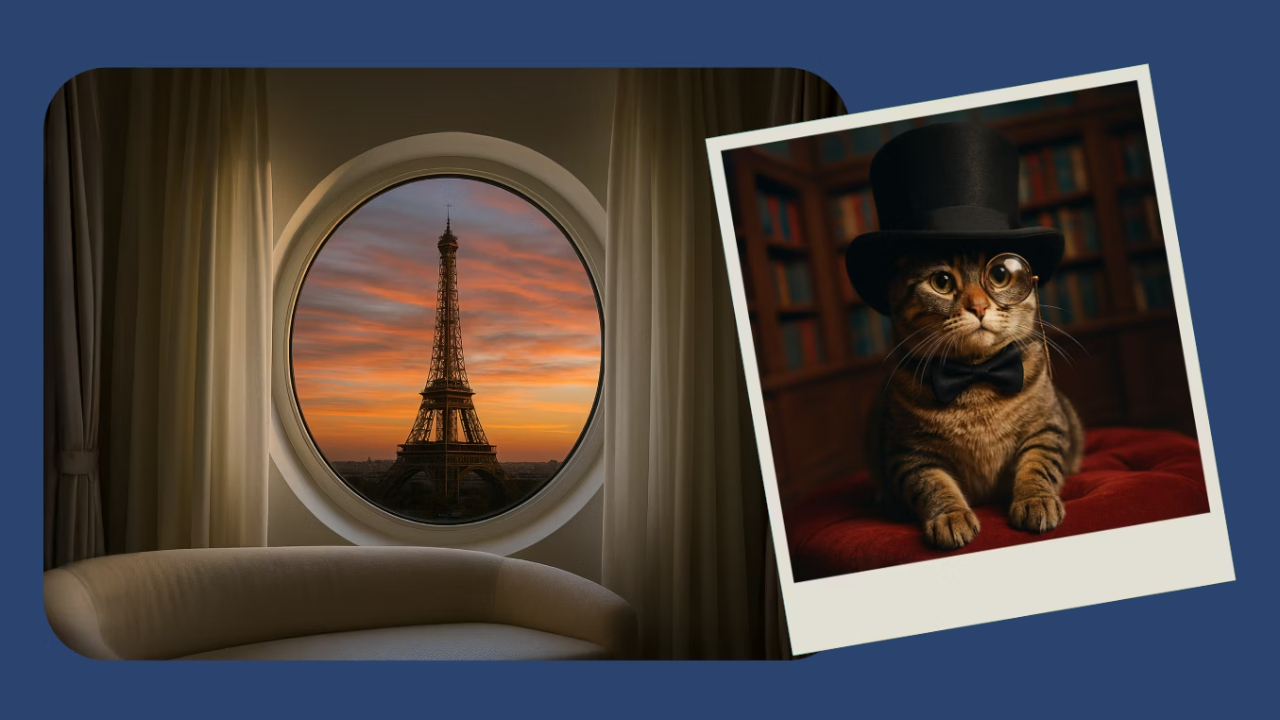
“Create a detailed illustration of a cat wearing a black top hat and monocle, sitting on a red velvet cushion in a classic library, fireplace glowing in the background.”
Each adjustment increases:
- Specific objects
- Environmental context
- Lighting direction
- Tone and mood
Changing even small words can make a huge difference in the result.
Use adjectives strategically.
Adjectives are a powerful tool when you refine AI image prompts because they help define:
- Size (large, miniature, towering)
- Shape (circular, elongated, symmetrical)
- Aerial view (close-up, wide-angle)
- Emotions (melancholic, whimsical, dramatic)
- Light (golden hour, soft glow, neon-lit, moody shadows)
Compare this example:
basic:
“Window with a view of the Eiffel Tower.”
Revised version:
“Large circular window framing the Eiffel Tower at sunset, warm orange sky, soft glowing light, cinematic atmosphere.”
Details transform "concepts" into "experiences".
Adjust image composition with precision.
If the image looks "strange," try adjusting specific features, such as:
- Colors: Warm tones, muted palette, black and white, pastel
- Lighting: Brighter, Glowing edges, Blurry shadows
- Composition: Centered orientation, rule of thirds, foreground emphasis.
- Image dimensions: Blurred background, shallow depth of field
- Mood: Bright smile, mysterious
example:
Instead of writing:
“Emoji in corner”
Try writing:
“Small smiling emoji with heart eyes placed in the bottom right corner, subtle shadow, vibrant yellow glow.”
Precision significantly improves positioning and sharpness.
Precision significantly improves positioning and sharpness.
If adjusting that doesn't work, try using a similar word.
Replace the following with:
“Realistic”
Try using:
“Photo-realistic”
“Hyper-realistic”
“Cinematic DSLR photograph”
Replace the following with:
“Dark”
Try using:
“Moody shadows”
“Low-key dramatic lighting”
“Midnight atmosphere with soft neon highlights”
Changing a few words can completely change the outcome.
Think like an Art Director.
To refine AI image prompts effectively, imagine giving instructions to a professional photographer or digital artist.
Ask yourself:
- What is the subject doing?
- What is the mood of the image?
- Where is the scene located?
- What of dtime ay is it?
- What camera angle is used?
- What art style defines the output?
The more intentional you are, the better the outcome.
Common Mistakes to Avoid
- Being Too Vague
A single prompt might work, but it often gives generic results.
weak:
“Portrait of a woman”
Stronger:
“Photo-realistic portrait of a middle-aged woman with silver hair, soft studio lighting, shallow depth of field, calm expression.”
Try to use at least 6 words to describe the meaning clearly.
- Not Providing Enough Context
Low-detail prompts often result in flat or low-quality images.
Add words such as:
- High resolution
- Ultra-detailed
- Cinematic
- Dynamic composition
- Soft focus
- Vibrant lighting
- Textured
These terms help define the quality of a photographic work.
- Ambiguous Descriptions
Instead of writing:
“Dog”
Be specific:
“Golden retriever running through tall green grass, sunset lighting.”
Instead of writing:
“Portrait of a woman”
Try:
“Abstract watercolor portrait of a young woman, expressive brush strokes, pastel color palette.”
Clarity reduces randomness.
The Power of Iteration
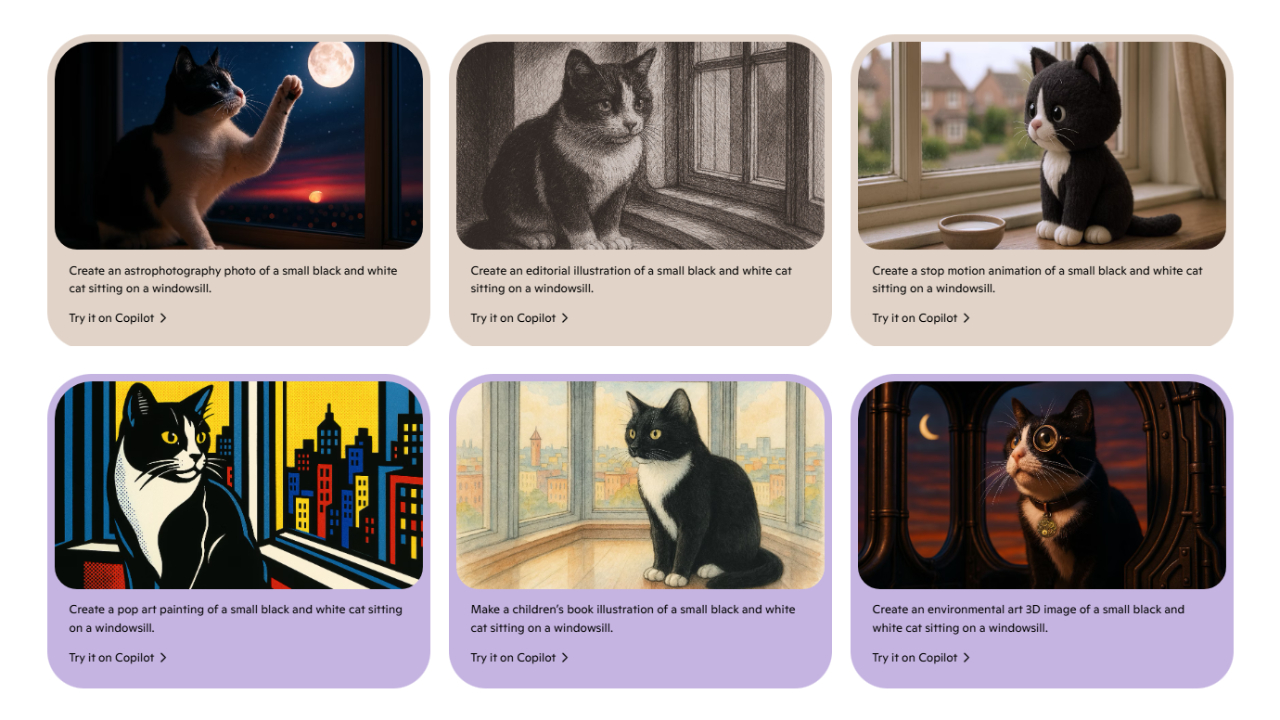
Refinement is a creative process. There are no “wrong” prompts—only evolving ones. Each version brings you closer to the vision in your mind.
When you refine AI image prompts consistently:
- Your results become more predictable
- Your creative control increases
- Your visual storytelling improves
- Your efficiency grows
Mastery comes from experimentation.
Conclusion
The difference between an average AI-generated image and a stunning one often lies in refinement. Learning how to refine AI image prompts gives you control, clarity, and creative precision.
Instead of settling for the first result, adjust, enhance, and iterate. Add richer context. Clarify ambiguity. Introduce stronger descriptive language.
The more you practice, the more intuitive the process becomes—and the closer your digital images will match your inner vision.