AI-powered creativity is transforming the way we design, market, and tell stories. With Microsoft Copilot, anyone can master Image generation by learning how to structure prompts effectively. The key to stunning visuals isn’t just the tool—it’s how you communicate your vision.
This guide walks you through the fundamentals of writing strong AI prompts so you can consistently generate images that align with your imagination.
What Is an AI Image Prompt?
An AI image prompt is a text-based instruction you provide to a generative AI model like Microsoft Copilot to produce a visual output. Instead of using brushes or cameras, you use words to describe:
- Subject
- Setting
- Mood
- Colors
- Artistic Style
Copilot then translates that description into a digital image.
Prompts can be short phrases or detailed paragraphs. However, the more specific and descriptive your prompt is, the more accurate and satisfying your results will be.
Why Prompt Structure Matters in Image generation
When working with Image generation tools, structure influences outcome quality. Well-structured prompts reduce ambiguity and guide the AI more effectively.
A strong prompt typically moves in this order:
- Image type
- Main subject
- Descriptive details
- Environment or context
- Lighting and mood
- Art style or camera perspective
example:
“Create a cinematic digital painting of a futuristic city skyline at sunset, neon reflections on wet streets, ultra-detailed, dramatic lighting, wide-angle perspective.”
This prompt is specific, descriptive, and layered—leading to higher-quality results.
How to Start an AI Image Prompt
To ensure Copilot generates an image (rather than text), begin your prompt with a clear action verb such as:
- Create
- Generate
- Illustrate
- Paint
- Draw
- Design
Then immediately state the subject.
Simple Prompt Example
“Create a watercolor painting of a mountain village.”
Improved Prompt Example
“Create a detailed watercolor painting of a peaceful mountain village at sunrise, soft golden light, misty atmosphere, vibrant flowers in the foreground.”
Notice how the second version includes:
- Time of day
- Lighting
- Mood
- Environmental details
These additions dramatically improve output precision.
Use Strong Descriptive Language
In prompt engineering, descriptive words matter far more than filler words. Words like “a,” “the,” or “for” don’t significantly influence the result.
Instead, focus on:
- Textures (rustic, glossy, metallic)
- Lighting (dramatic, soft, neon-lit, cinematic)
- Emotion (melancholic, joyful, mysterious)
- Detail level (ultra-detailed, minimalist, high-resolution)
- Perspective (close-up, aerial view, wide shot)
Aim for at least six strong descriptive keywords tied directly to the final visual output.
Key Ingredients of a Powerful Prompt
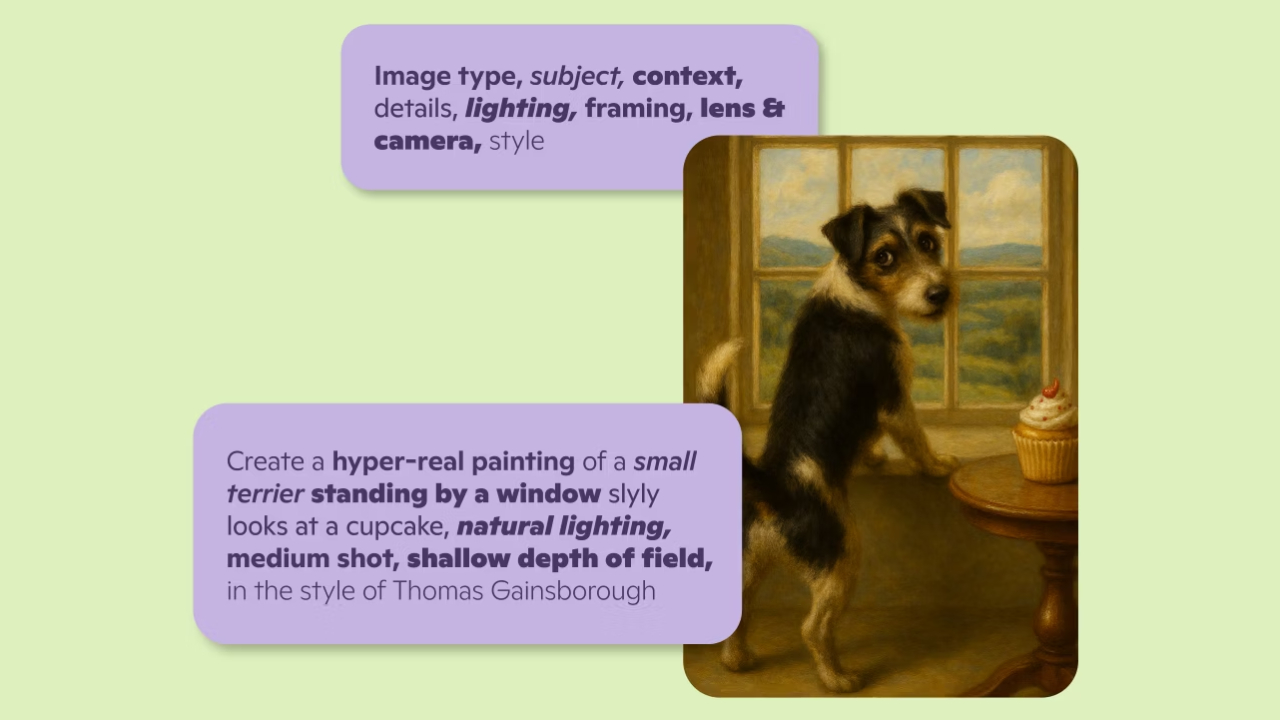
While not every prompt needs every element, incorporating these components significantly improves Image generation results:
Component | Purpose |
Image Type | Photo, painting, 3D render, sketch |
Main subject | Main focal point of the image |
Context | Environment or scene background |
Details | Texture, clothing, objects, colors |
Lighting | Mood and atmosphere |
Framing | Close-up, wide shot, portrait |
Lens & Camera | DSLR, macro lens, cinematic angle |
Style | Anime, realism, cyberpunk, oil painting |
The more clearly you define these factors, the more predictable and refined your outcomes will be.
From Basic to Advanced: Prompt Comparison
Basic Prompt
“Dog on a spaceship.”
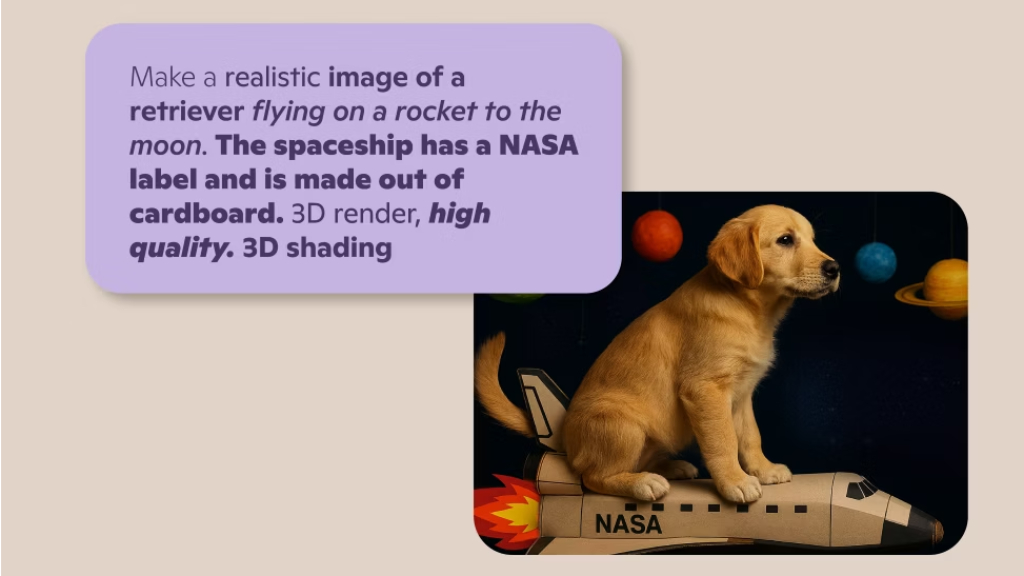
Advanced Prompt
“Generate a hyper-realistic image of a golden retriever astronaut floating inside a futuristic spaceship cockpit, glowing control panels, cosmic galaxy background, cinematic lighting, ultra-detailed textures.”
The second prompt provides:
- Specific subject type
- Scene details
- Lighting direction
- Texture information
- Atmosphere
Precision creates impact.
Best Practices for Better Results
1. Be Precise
Avoid vague instructions like “nice background” or “cool style.” Instead specify what “nice” or “cool” means.
2. Add a Clear Scene
Context reduces randomness. Describe where your subject exists.
3. Specify Style
Mention artistic direction:
- Realistic photography
- Anime style
- Oil painting
- Minimalist vector art
- Cyberpunk aesthetic
4. Include Mood and Lighting
Mention artistic direction:
- Soft sunrise glow
- Moody dark shadows
- Neon cyber lighting
- Natural daylight
5. Experiment Creatively
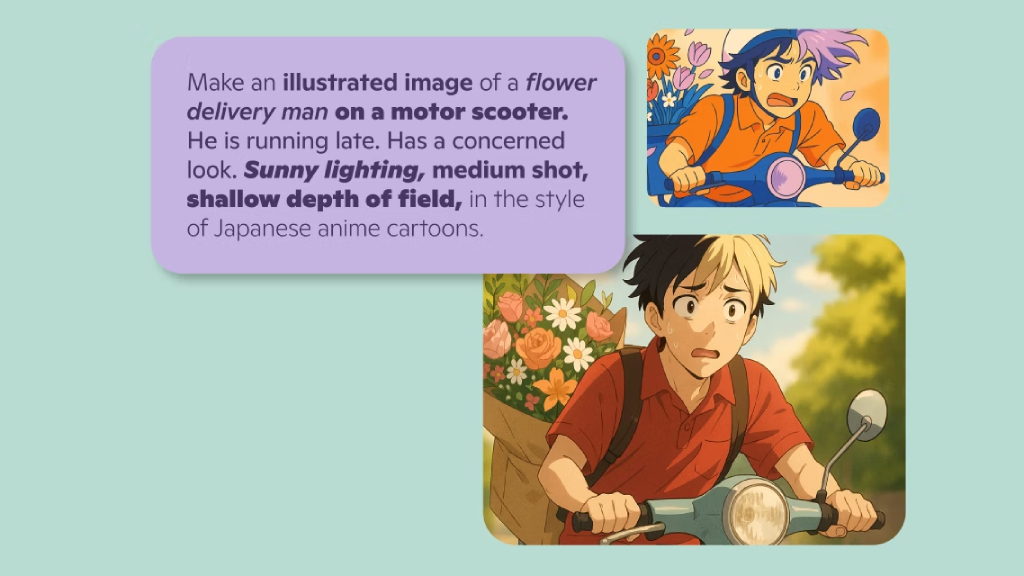
Instead of writing:
“Flower delivery man”
Try writing:
“Create a whimsical illustration of a cheerful flower delivery courier riding a vintage bicycle through a pastel-colored European street, soft spring sunlight, storybook style, vibrant details.”
Creativity combined with clarity will yield excellent results.
Common Mistakes to Avoid
- Using too few descriptive keywords
- Forgetting to specify style
- Being overly vague
- Ignoring lighting or mood
- Writing conversational text instead of clear instructions
Remember, AI responds to structure and clarity.
Practice Makes Perfect
Mastering Image generation with Copilot is a skill that improves through experimentation. Test variations of the same concept:
- Change lighting
- Adjust style
- Modify framing
- Add atmospheric details
- Increase or decrease realism
Small prompt changes can result in dramatically different visuals.
Summary
Image prompting is both technical and creative. The structure you use shapes the images you receive. By focusing on clarity, specificity, and descriptive depth, you can unlock the full power of Microsoft Copilot’s AI art capabilities.